Sync Planner with your calendar
Connect your Google or Microsoft calendar to see your full schedule in one place. Events from your external calendar appear in BetterCampus, and your planned tasks show up on your calendar automatically.
Calendar sync is a Pro feature. See what's included in each plan.
How two-way sync works
When you connect your calendar, information flows both ways:
Events flow in — Google or Microsoft calendar events appear on your BetterCampus Planner so you can see your whole schedule in one place
Tasks flow out — Due dates, planned work times, and class times automatically show up on your external calendar
Set up calendar sync
Click Calendar in the BetterCampus sidebar
Choose Continue with Google or Continue with Microsoft
Sign in with your account and authorize the connection
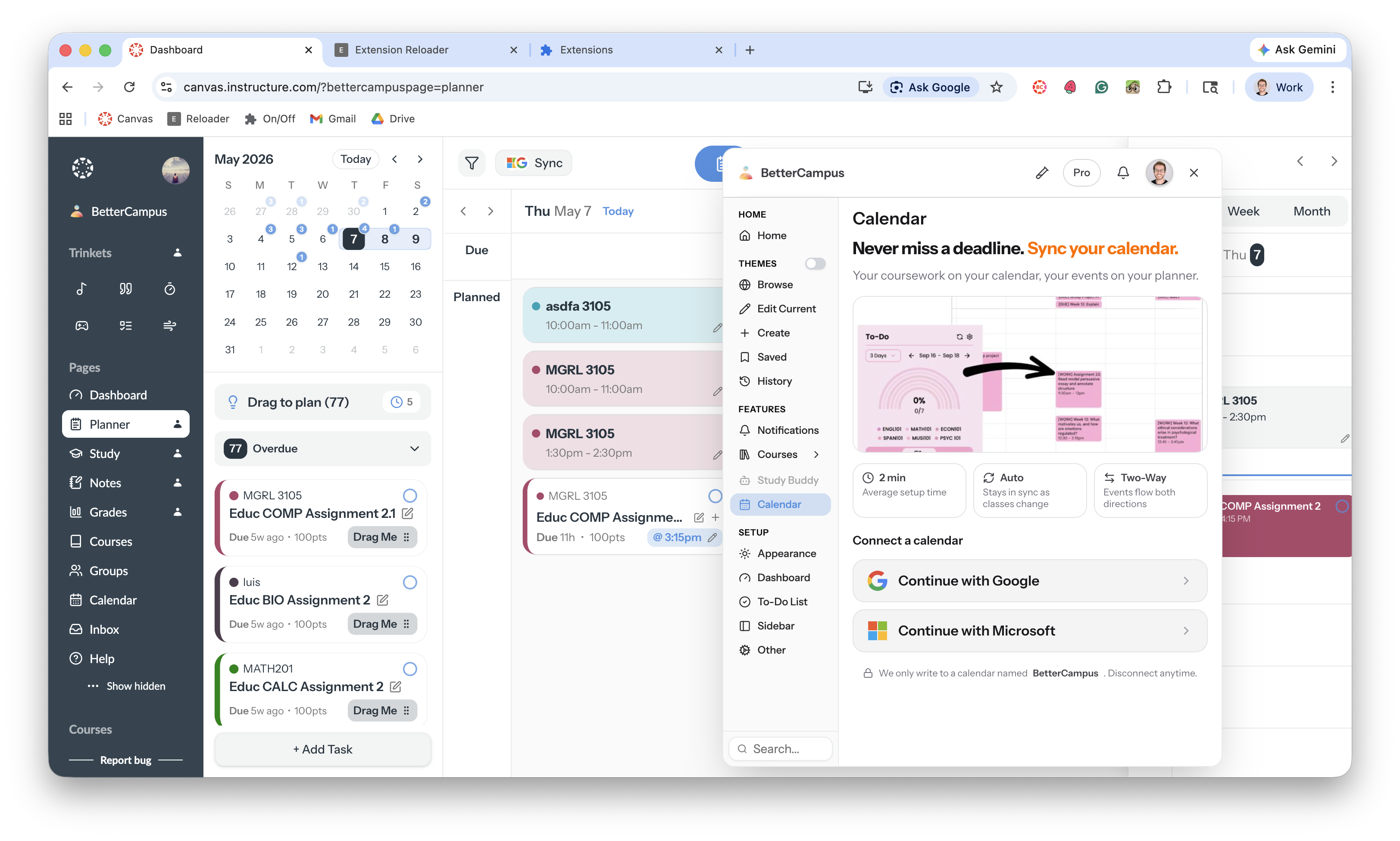
Once connected, your calendar events will start appearing in BetterCampus and your tasks will sync to your external calendar within a few minutes.
What you need to know
BetterCampus creates its own calendar — Your tasks sync to a calendar named "BetterCampus" in your Google or Microsoft account. This keeps your school tasks separate from your personal events.
Disconnect anytime — You can disconnect your calendar from BetterCampus settings. Your existing events stay in your calendar, but new changes won't sync.
Sync updates automatically — When due dates change or you schedule new work times, your external calendar updates within minutes.
Having trouble?
If your calendar isn't syncing or events aren't appearing, see troubleshoot planner sync issues.