Planner overview
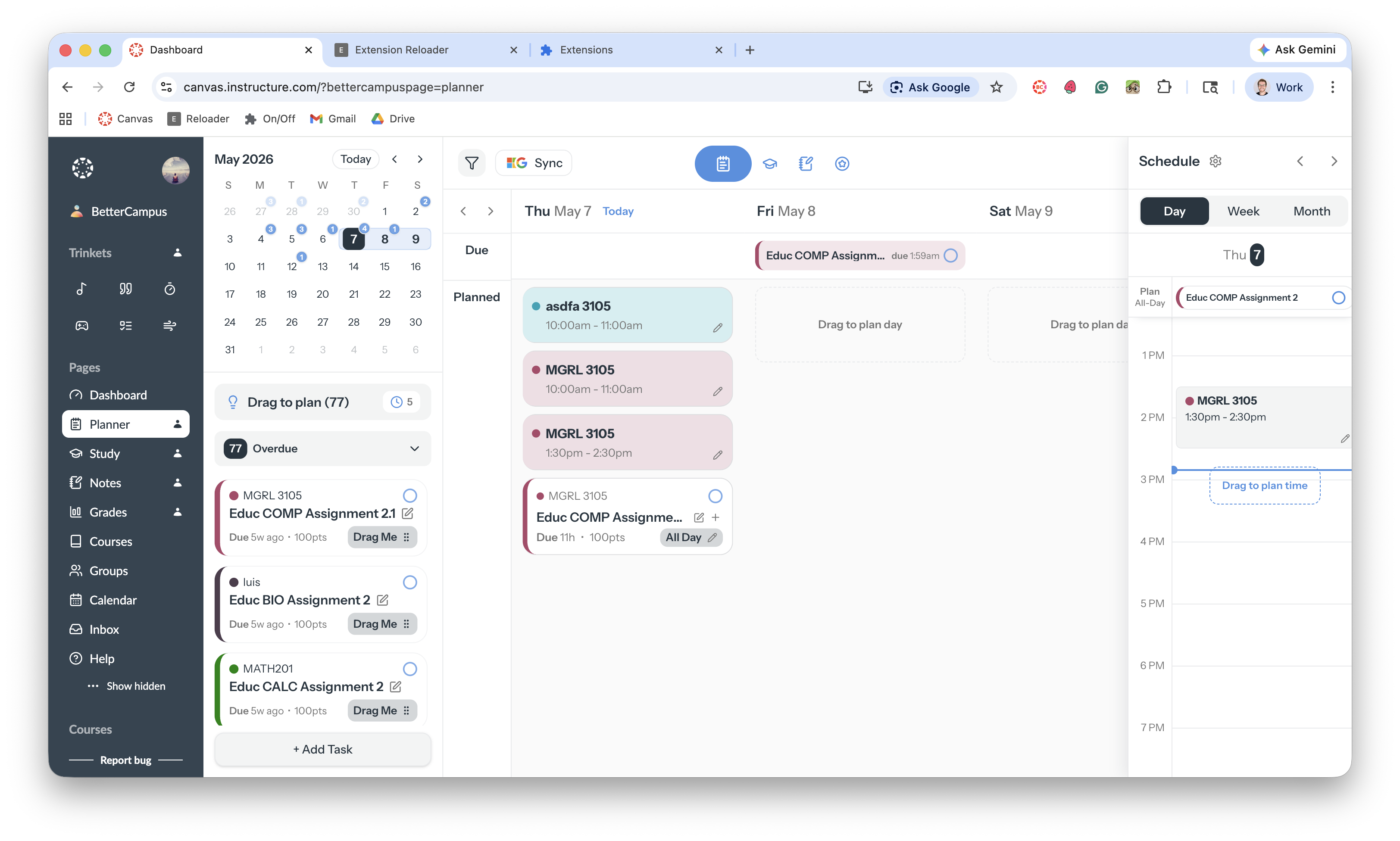
The BetterCampus Planner shows every upcoming assignment, discussion, and to-do from all your Canvas courses in one organized view—so you never miss a deadline.
Open it by clicking Planner in the BetterCampus sidebar. Your items appear grouped by date and course, and you can switch between Day, Week, and Month views. You can collapse the task sidebar to focus on your calendar—click the collapse button or choose Show To-Do List to expand it again. BetterCampus remembers your preference.
Free vs Pro
Feature | Free | Pro |
|---|---|---|
View all assignments | ✓ | ✓ |
Day, week, and month views | ✓ | ✓ |
Filter by course | ✓ | ✓ |
Add personal tasks | ✓ | ✓ |
Drag tasks to schedule | ✓ | ✓ |
Class schedules | ✓ | ✓ |
Plan at specific times | ✓ | |
Calendar sync | ✓ | |
Subtasks | ✓ |
What you can do
Schedule tasks — Drag tasks onto your calendar to plan when you'll work on them
Add personal tasks and subtasks — Create your own to-dos and break big assignments into smaller steps (subtasks are Pro)
Sync with your calendar — Connect Google or Microsoft calendar (Pro)
Add your class schedule — Block time for classes so you don't double-book
For more, see get reminders about upcoming deadlines or troubleshoot planner sync issues.
Task completion celebrations
When you complete tasks in Planner, BetterCampus celebrates with an animation based on your celebration style settings. You can choose from confetti, fireworks, stars, hearts, sparkle, or turn off celebrations entirely.