Add personal tasks and subtasks
BetterCampus automatically pulls your assignments from Canvas, but sometimes you have to-dos that aren't on Canvas—like studying for a test, picking up supplies, or finishing a personal project. You can add these as personal tasks right alongside your Canvas work.
Personal tasks show up in the same list as your Canvas assignments, so everything you need to do lives in one place.
Add a personal task
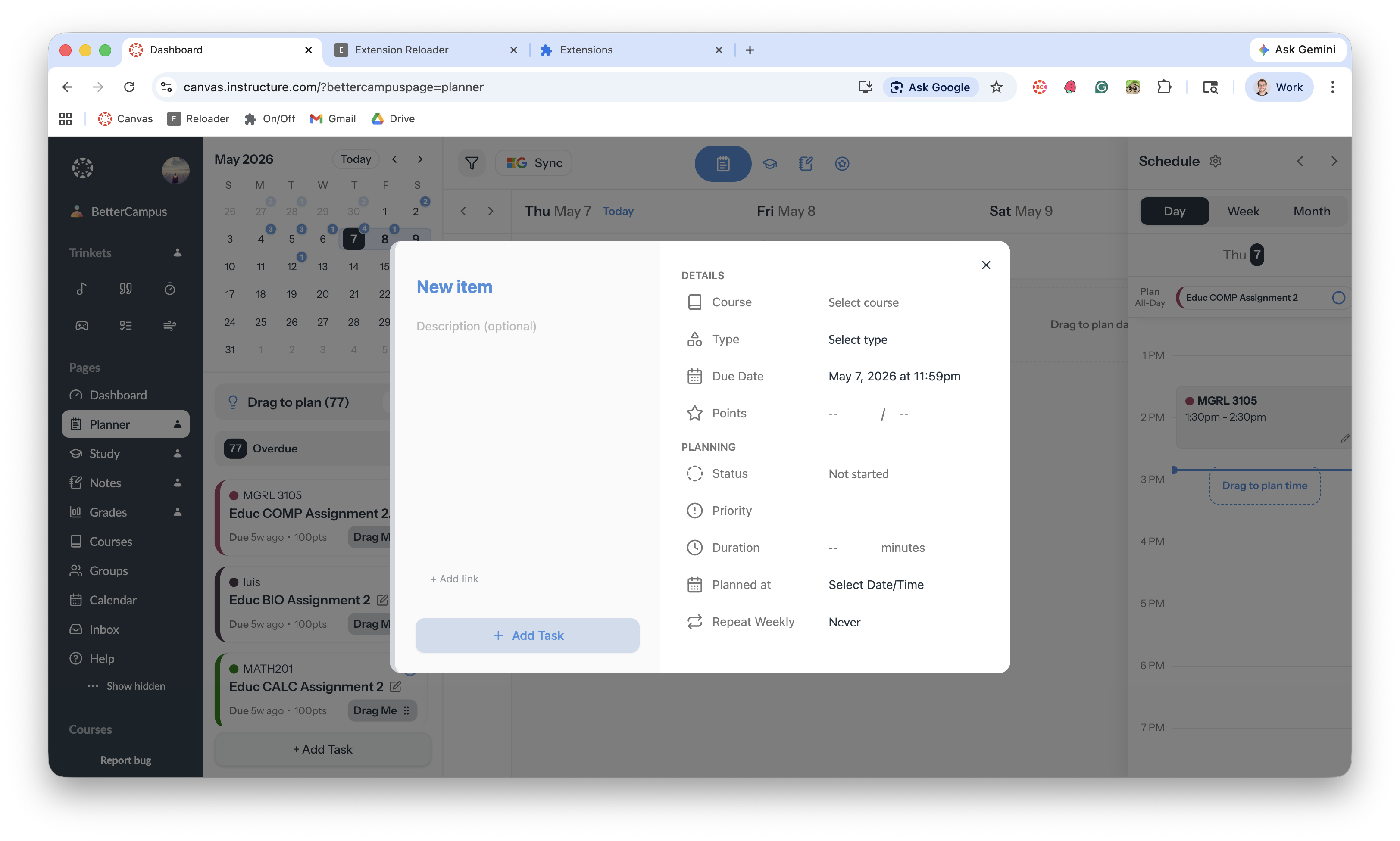
Click + Add Task at the bottom of your task panel in the Planner
Fill in the task details:
Name — What the task is called
Description (optional) — Add notes or details
Course — Link it to one of your classes, or leave blank to keep it personal
Type — Choose assignment, study session, reminder, or other
Due date — When it needs to be done
Priority — High, medium, or low
Duration estimate — How long you think it'll take
Click Save
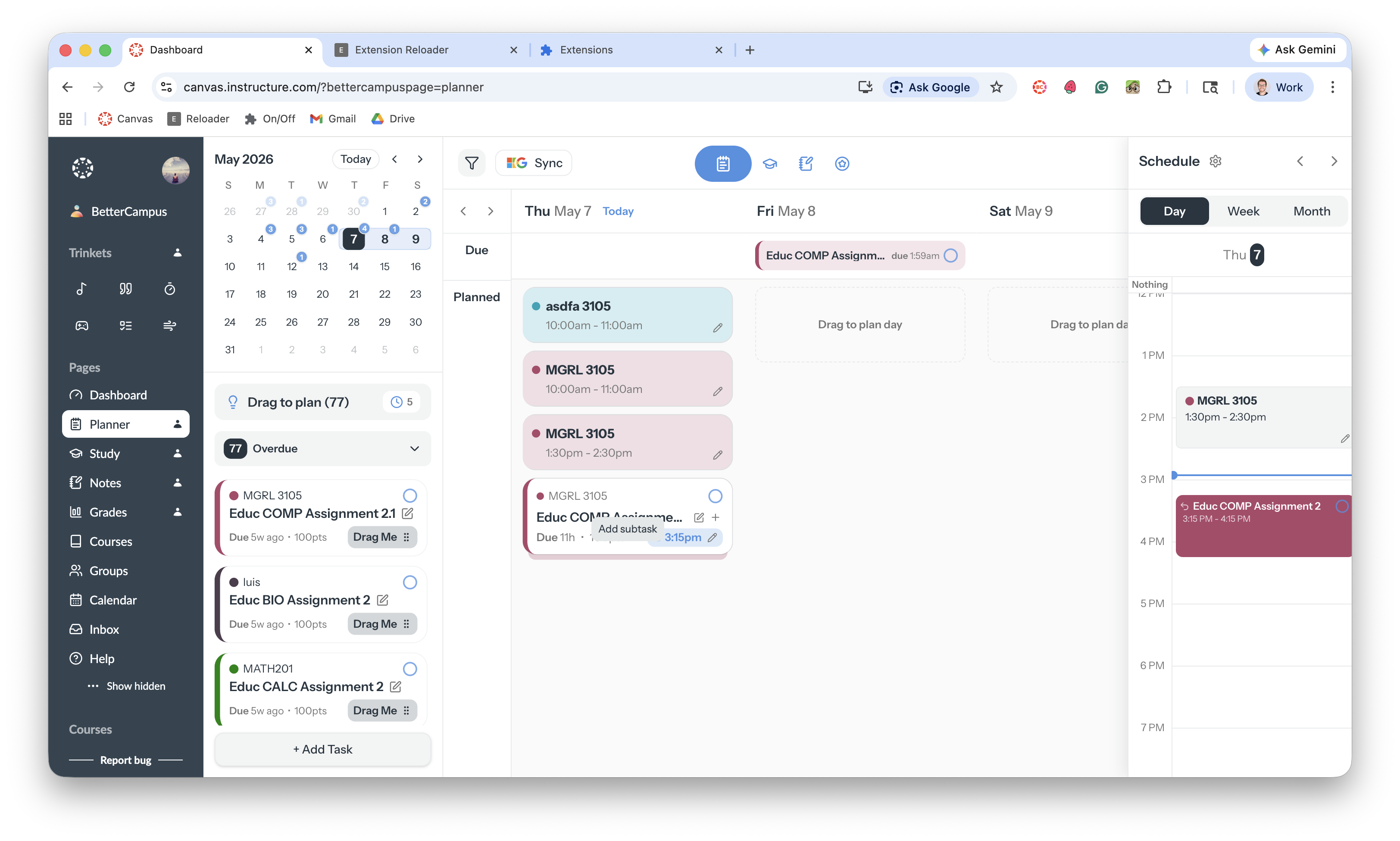
Your new task appears in your Planner alongside everything from Canvas.
Break big tasks into subtasks
Large assignments or projects feel less overwhelming when you break them into smaller steps. Use subtasks to map out exactly what needs to happen.
To add a subtask:
Hover over any task in your Planner
Click Add subtask
Enter a name for the subtask
Subtasks appear nested under their parent task, so you can see all the pieces of a larger project at a glance.
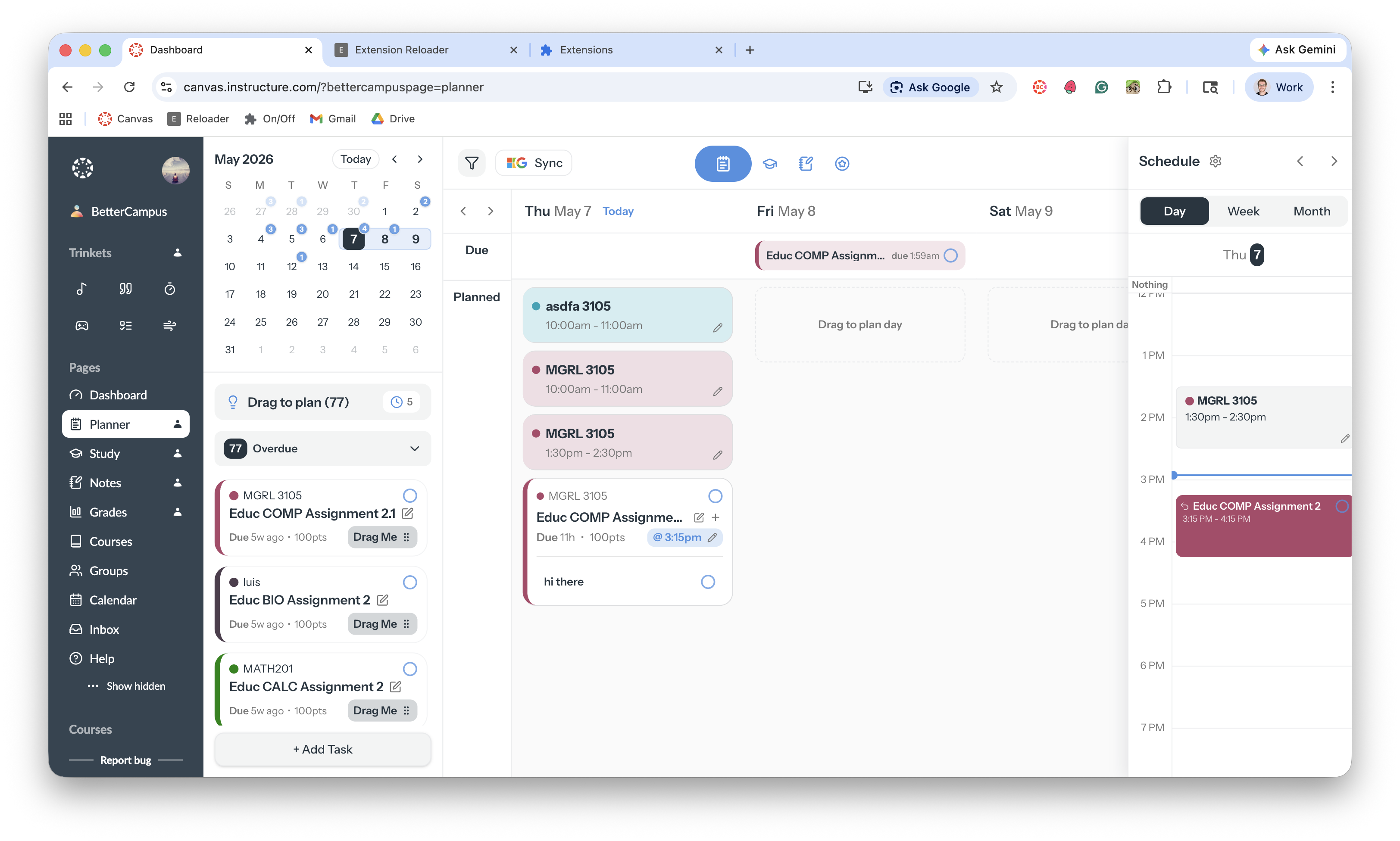
Subtasks are a Pro feature. Free users can view existing subtasks but cannot create new ones. See what's included in each plan.
What's next
Once you've added personal tasks or subtasks, you can drag them onto your calendar to schedule when you'll work on them.