Schedule tasks in Planner
The Planner isn't just for seeing what's due—it's for deciding when you'll actually do the work. Drag tasks onto your calendar to schedule specific work sessions, so you can balance your workload and avoid last-minute cramming.
Drag tasks onto your schedule
Find any task in the left panel of your Planner
Drag it onto the calendar on the right
Drop it on a day to schedule it
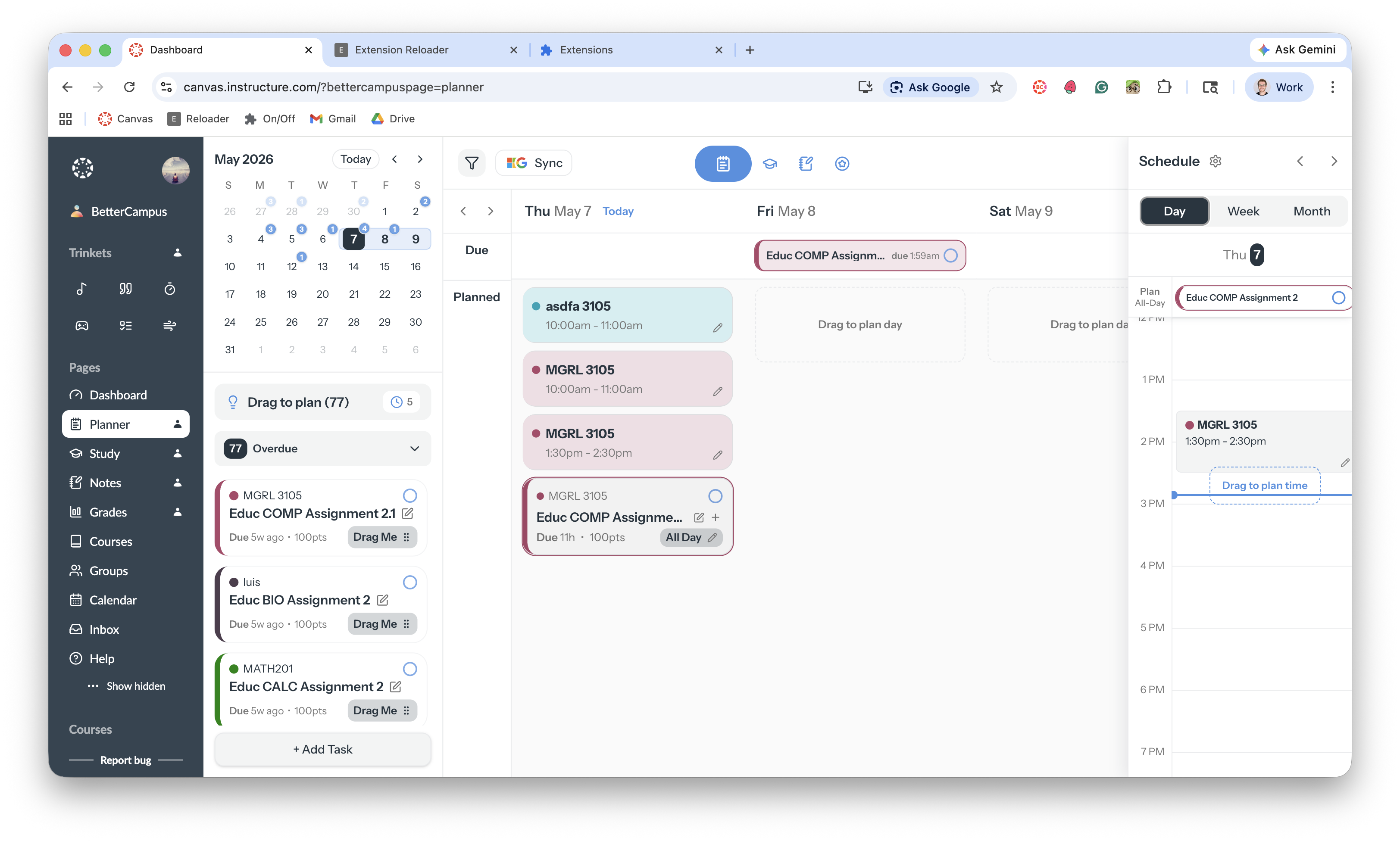
Tasks move from "unplanned" to "scheduled" as you add them to your calendar. This helps you see at a glance which assignments you've committed to work on and when.
Plan at specific times
Drag a task onto a specific time slot to set exactly when you'll work on it. The task will appear with a time range like "3:15 PM - 4:15 PM."
Scheduling at specific times is a Pro feature. On the Free plan, you can drag tasks onto a day, but not onto specific time slots. See what's included in each plan.
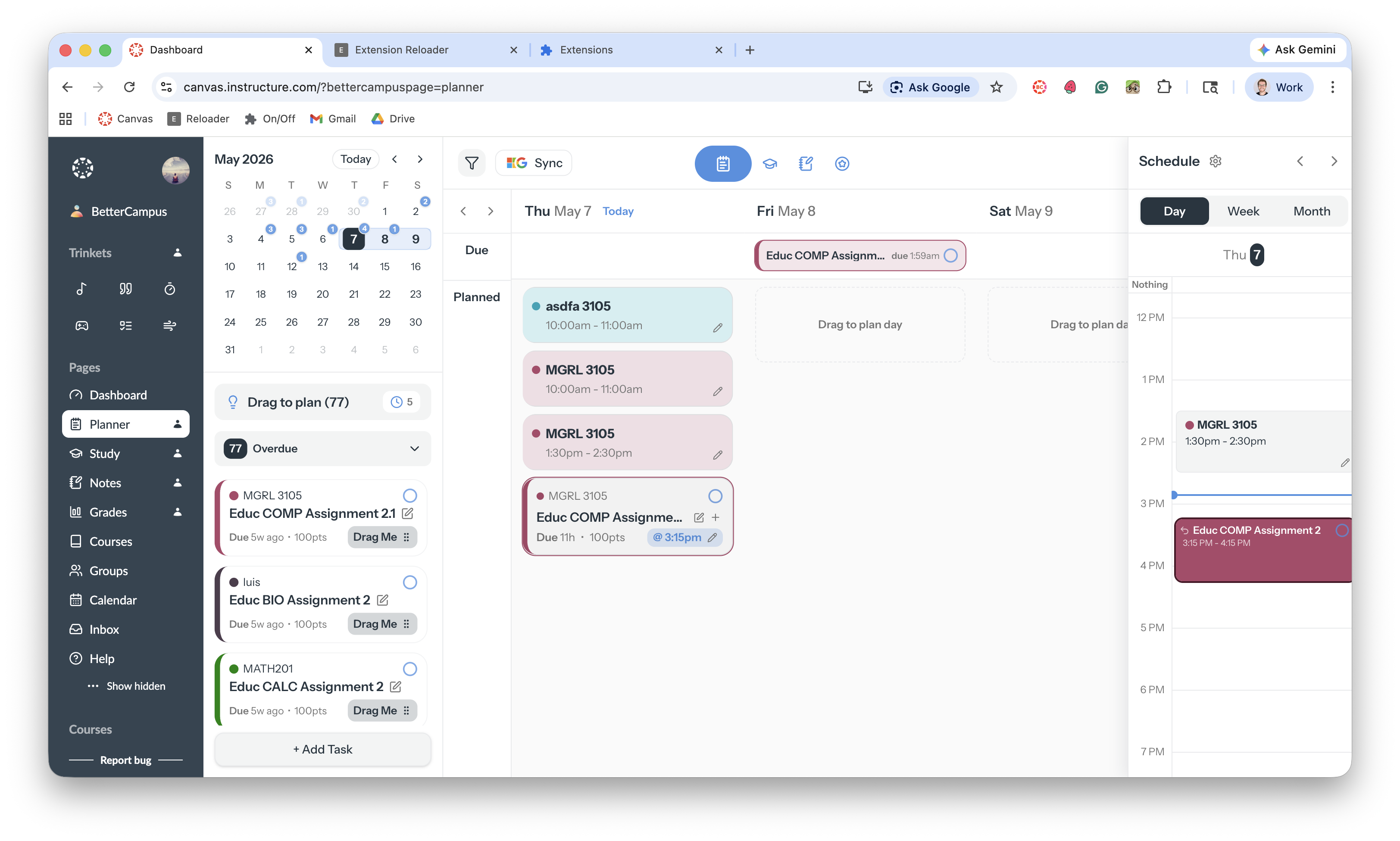
This is perfect for study sessions, blocking out focus time, or planning around your class schedule.
Switch between views
Use the tabs at the top of the schedule to change how you see your tasks:
Day — See today's schedule with time blocks for each planned task
Week — View your whole week at a glance and spot busy days
Month — See the full month's assignments spread across dates
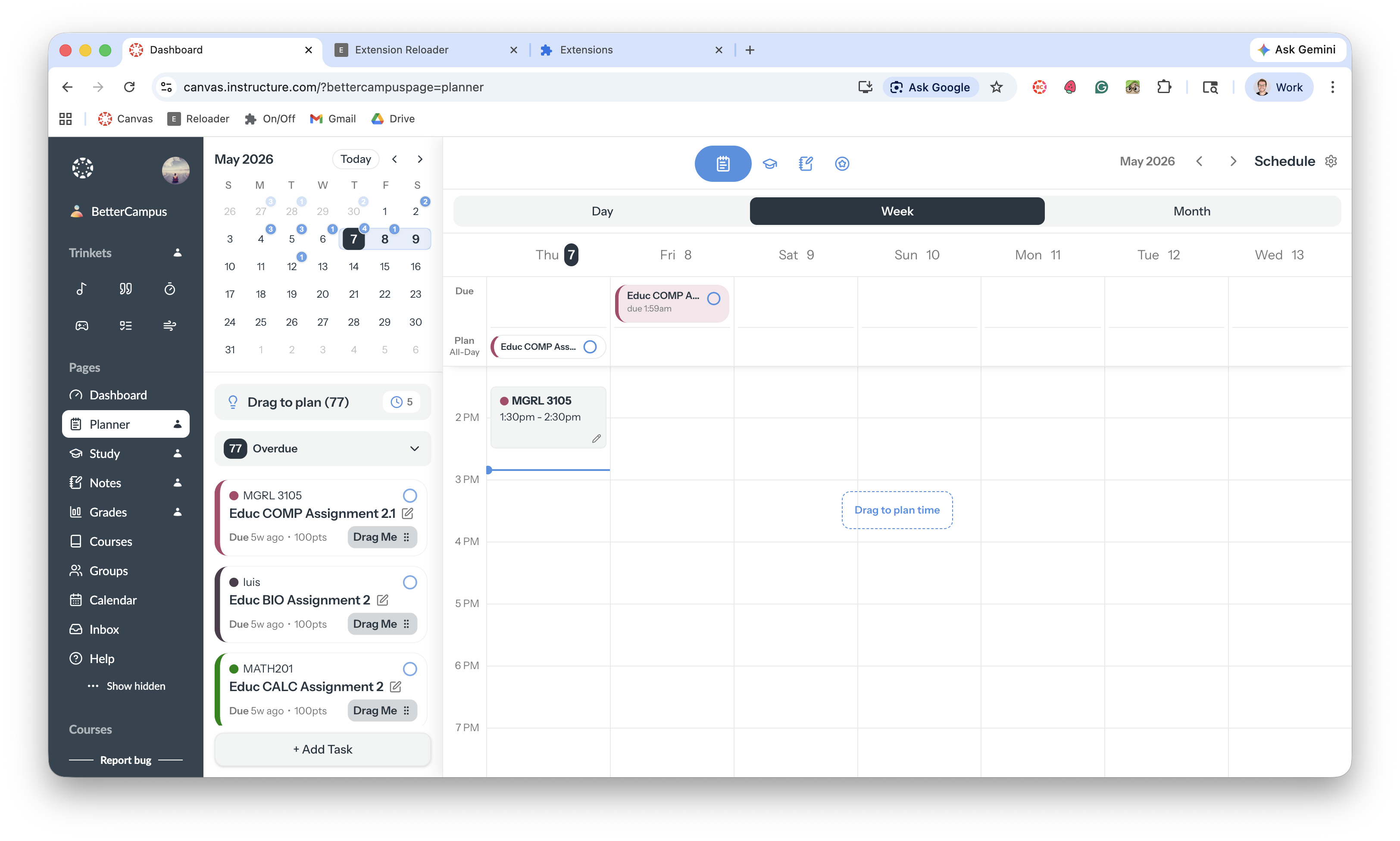
The Week view helps you spot busy days and plan ahead. Each assignment appears on its due date, and you can drag tasks between days to schedule when you'll work on them.
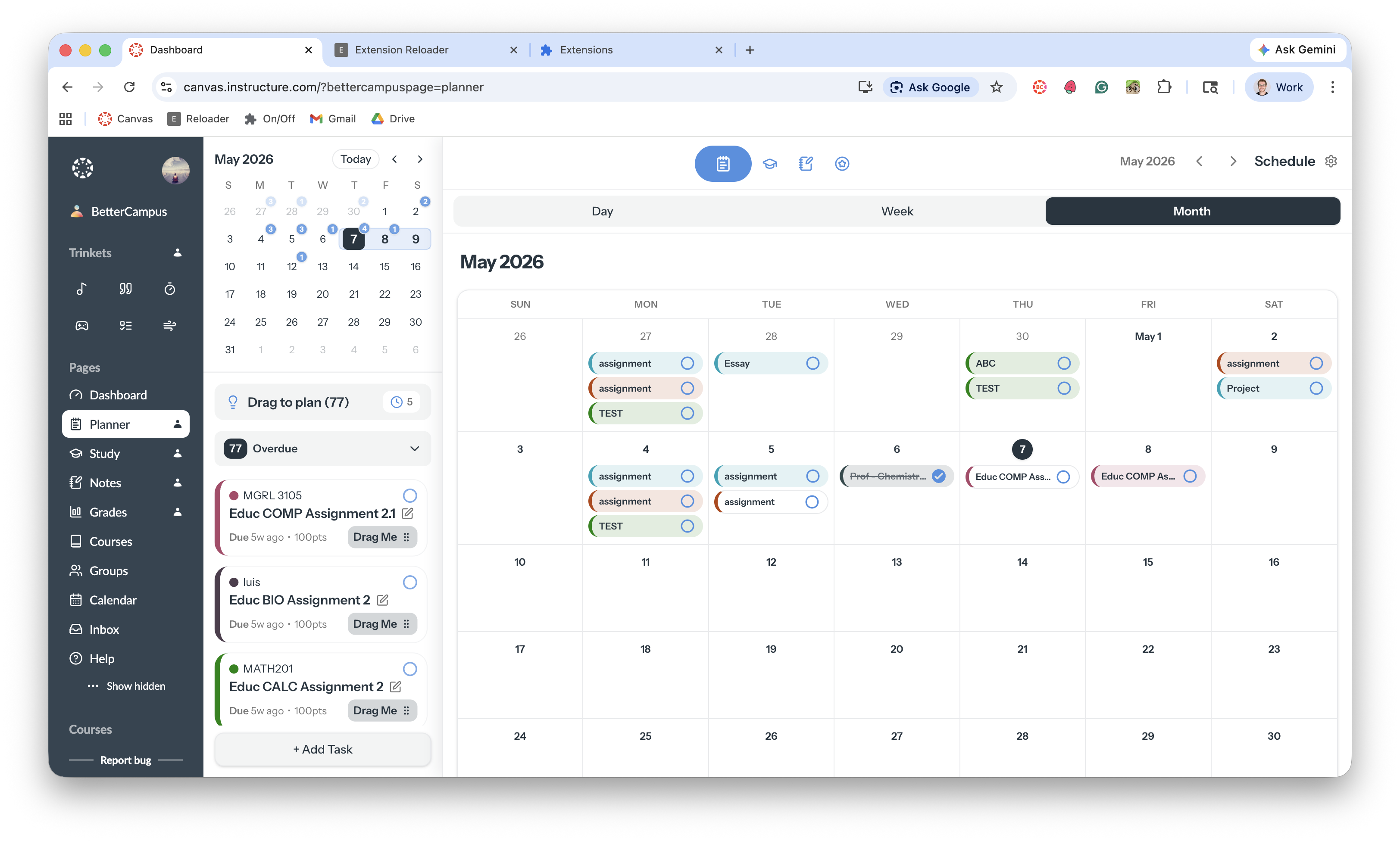
The Month view gives you the big picture—perfect for seeing exam weeks, project deadlines, and how your workload is distributed throughout the semester.
Filter by course
If you only want to see assignments from specific classes:
Click the filter icon above your task list
Check or uncheck the courses you want to show or hide
Use Select All or Clear All for quick toggles
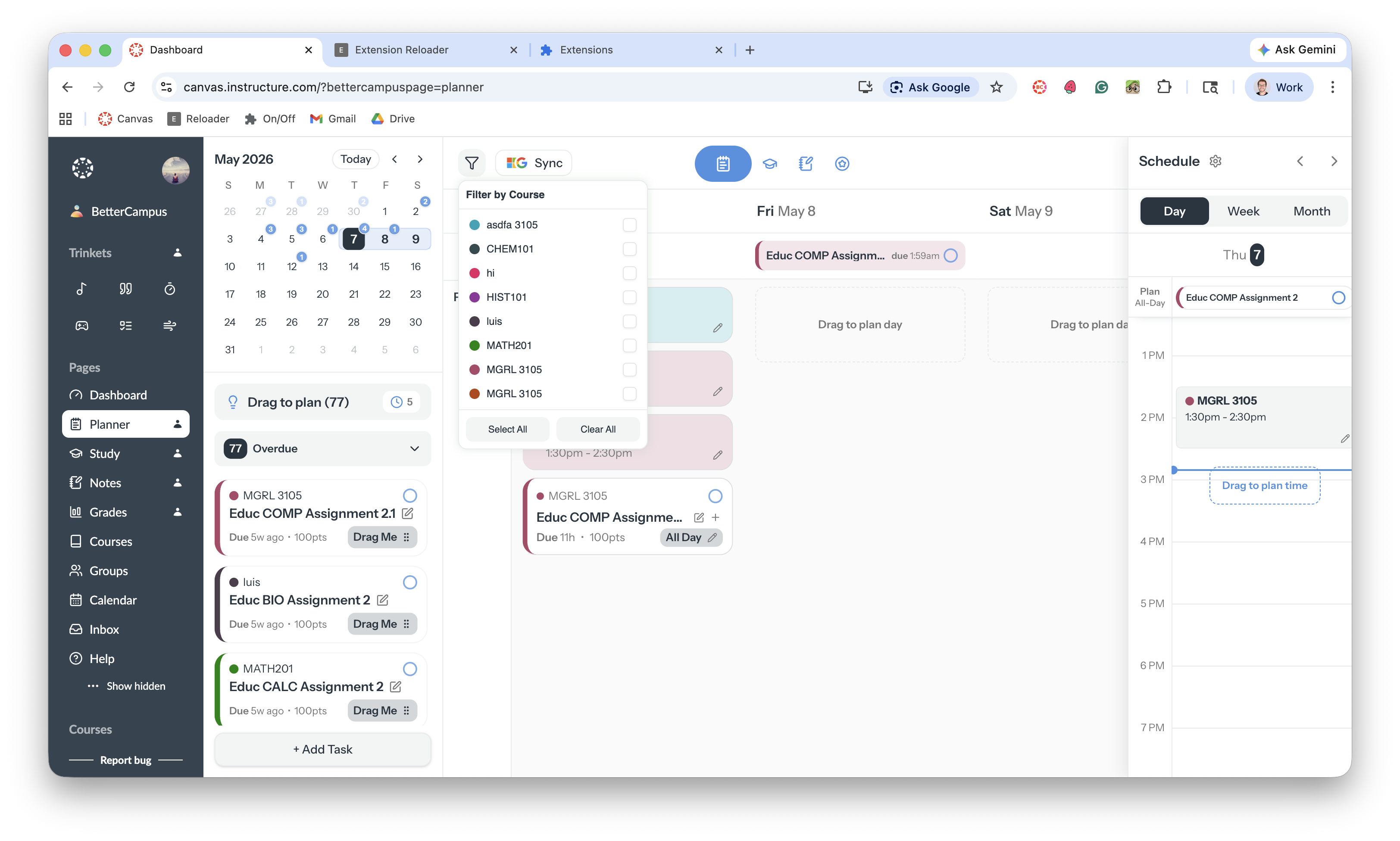
Use filters when you're focusing on one class or want to hide courses you've already completed.
Quick tips
Check your Planner at the start of each week to see what's coming up
Drag tasks onto your schedule early—don't wait until the night before
Hover over any task to see where it lives in Canvas, then click to jump straight there
What's next
Once you've scheduled your tasks, you might want to sync them to your calendar or add personal tasks.