
Set your class schedule
Updated 2 months ago
Tell BetterCampus when each class meets and it blocks that time out on your Planner, so you won't schedule study time on top of a lecture.
Open the class from Courses, or from the Planner, and go to the Schedule tab.
Import it
Under Import your schedule, drop in an ICS file or a screenshot of your timetable and click Import. BetterCampus reads the class times out of it.
The screenshot option is the useful one — most schools show your timetable on a page you can't export, and a screenshot of it works.
Uploading the syllabus fills the schedule in too, along with everything else. See Upload your syllabus.
Set the days yourself
Turn on the toggle for each day the class meets.
Set the start and end time for that day.
Set the Schedule end date so the class stops blocking out time once the term is over.
Days you leave switched off don't appear on your Planner at all.
Two useful buttons
+ adds another time block on the same day — for a class that meets twice, or a lecture and a lab.
The copy icon reuses that day's times on other days, which saves setting up Tuesday and Thursday separately when they're identical.
See every class at once
From the Planner, click Schedule at the top and choose Class Schedules for a list of all your classes, split into those that already have times and those that don't.
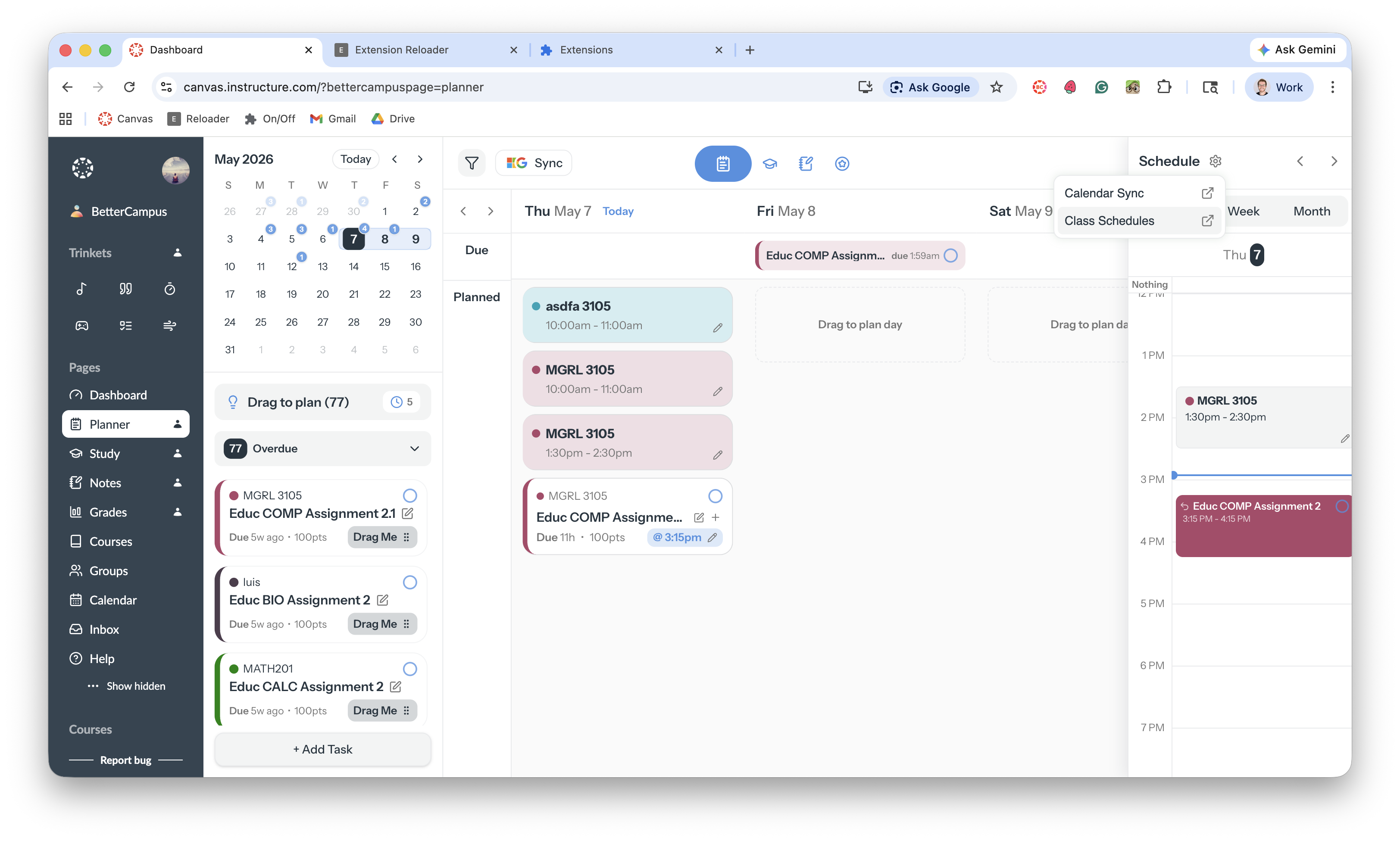
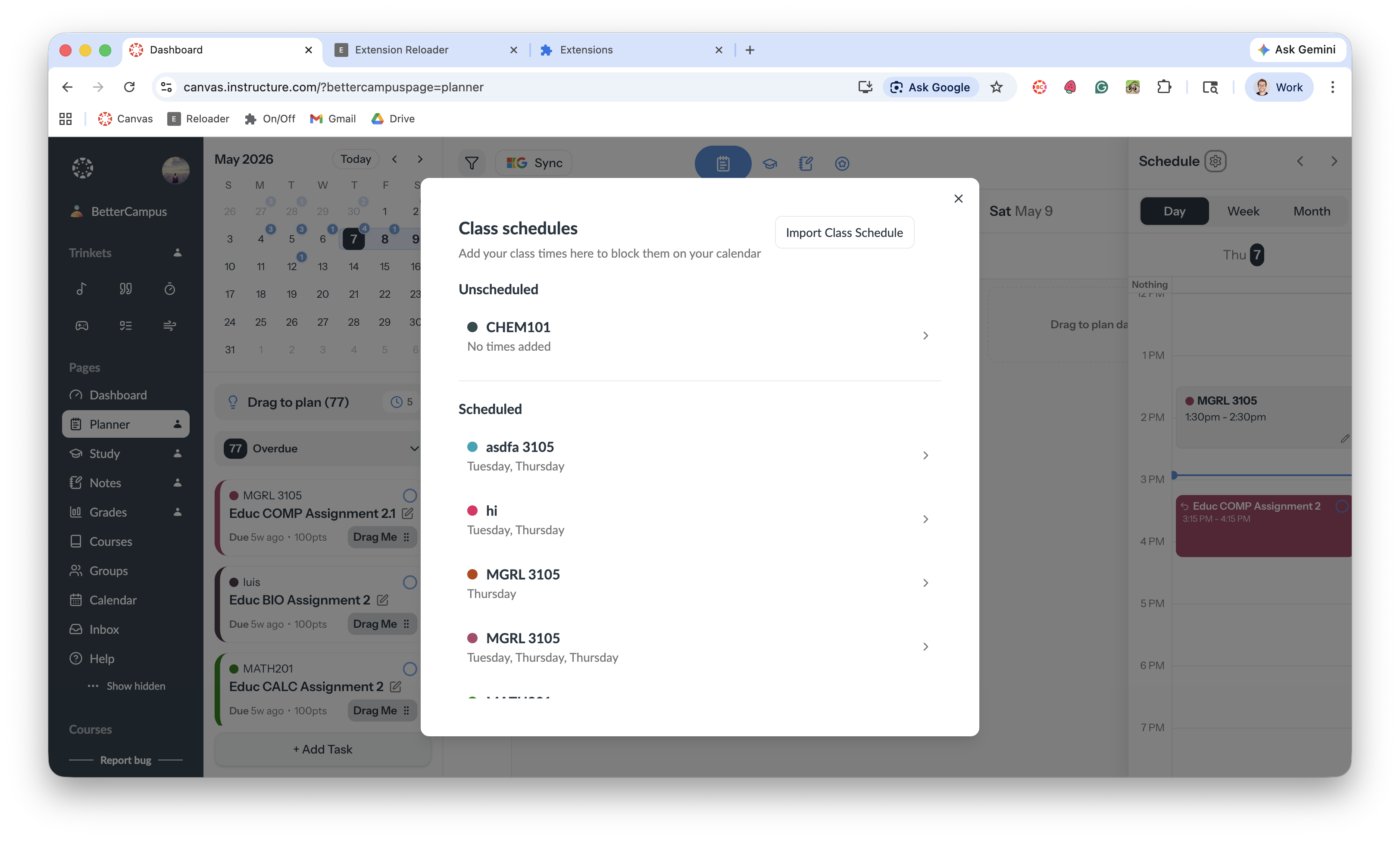
It's the quickest way to spot a class you forgot to set up.
Related
About the Planner — where your class blocks show up