
Schedule tasks
Updated 2 months ago
The Planner isn't just for seeing what's due — it's for deciding when you'll actually do it. Drag tasks onto your calendar to block out work time and avoid cramming the night before.
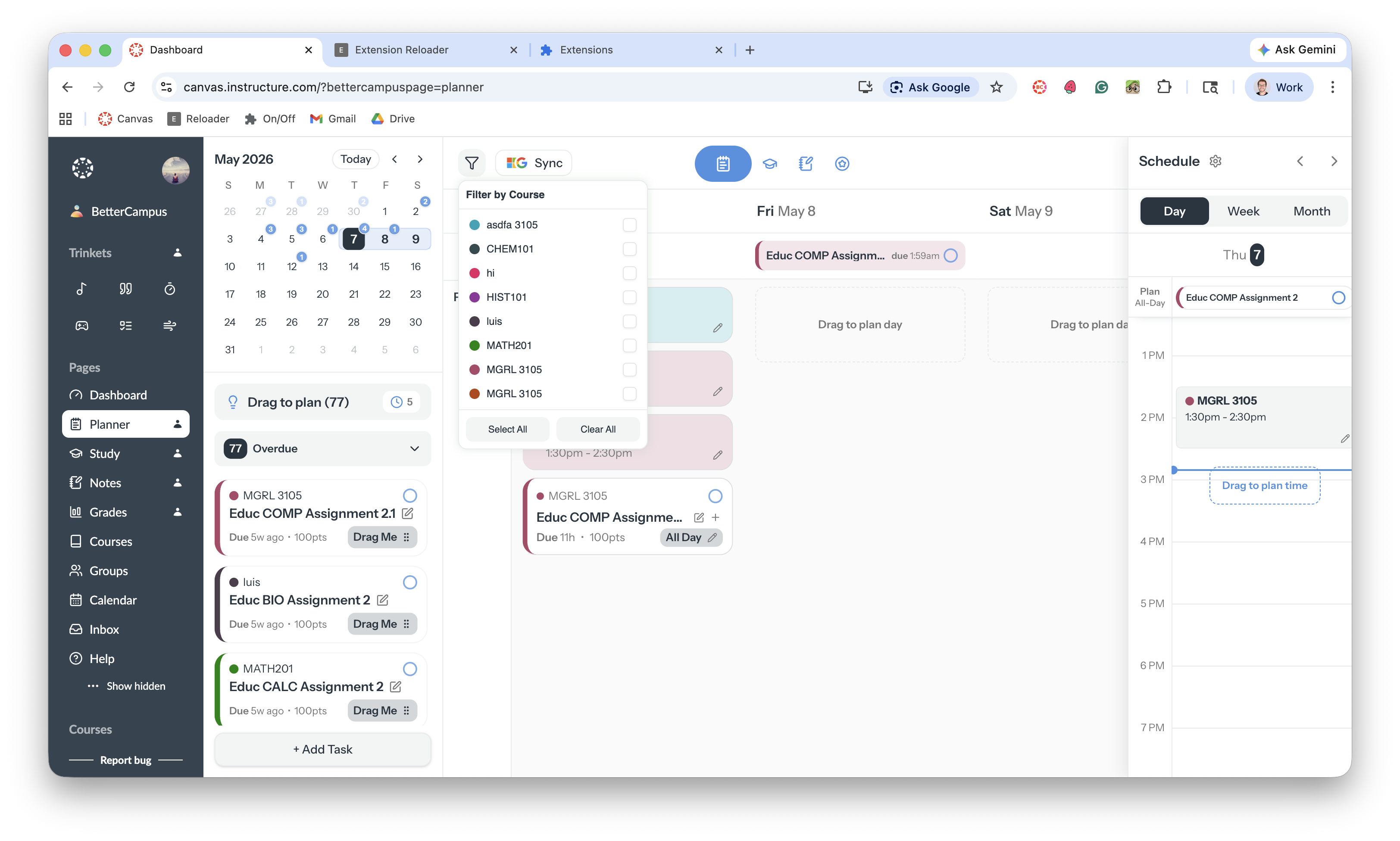
Drag a task onto your schedule
Find a task in the left panel of your Planner.
Drag it onto the calendar on the right.
Drop it on a day.
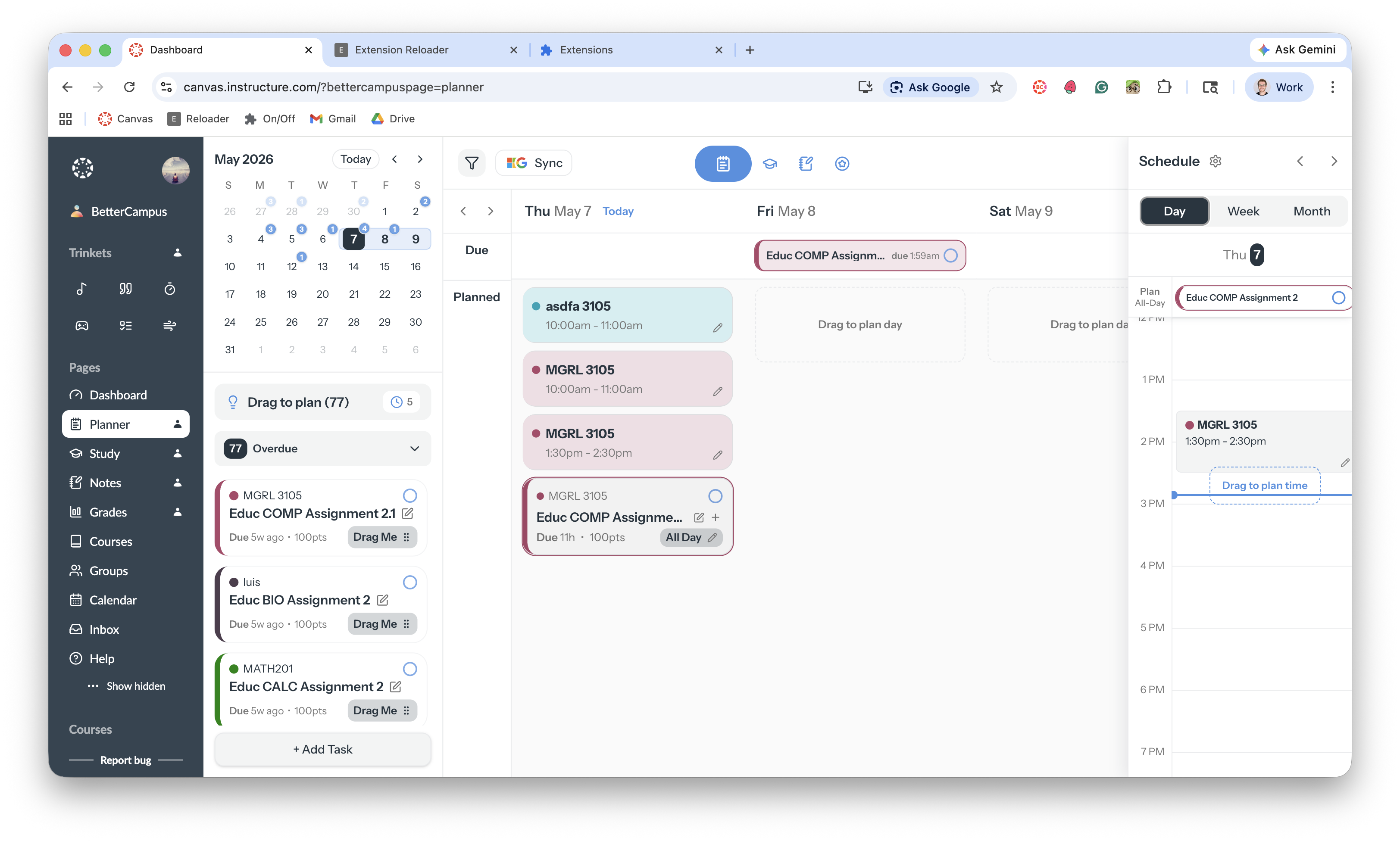
Tasks move from unplanned to scheduled as you add them.
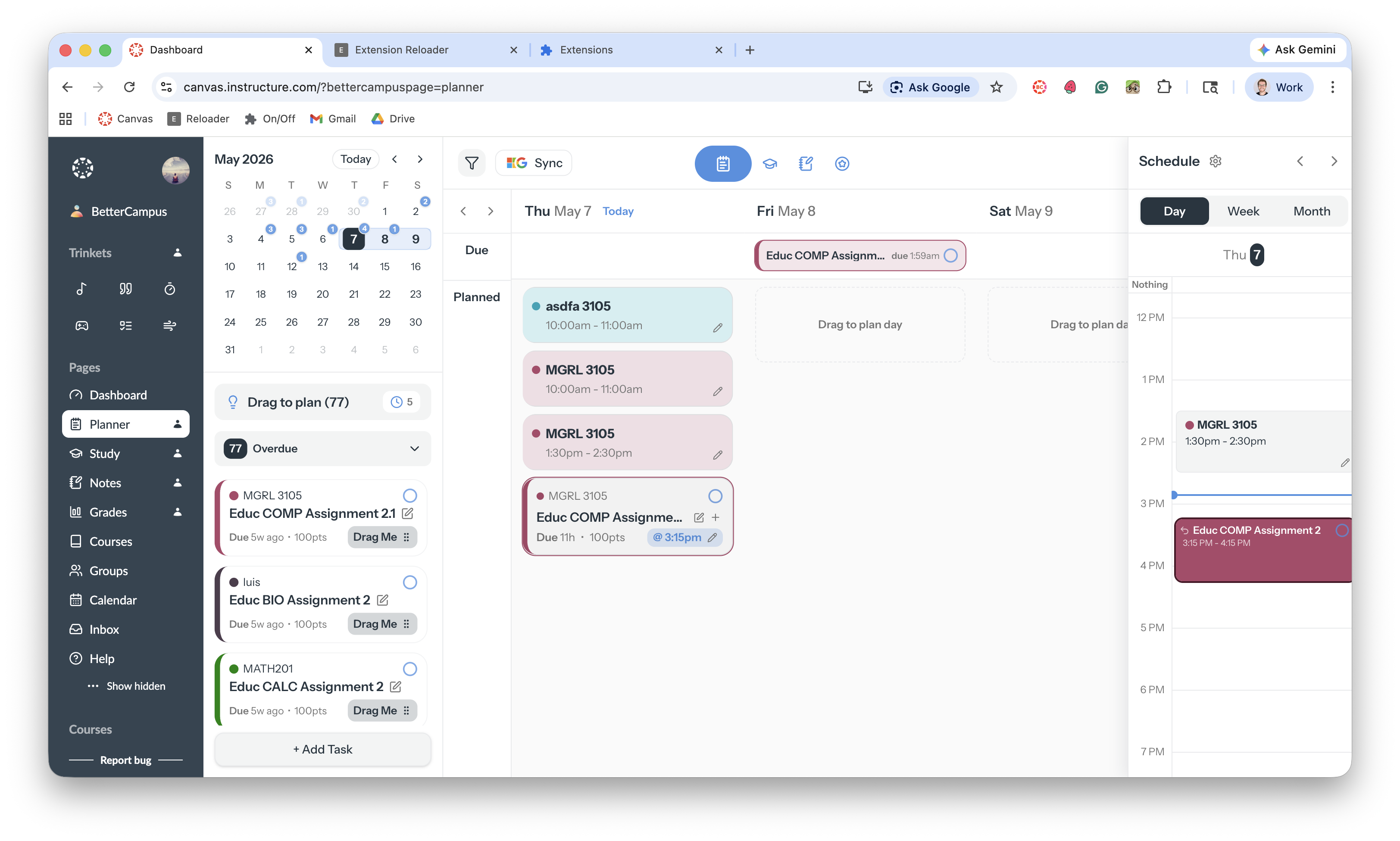
Plan at a specific time
Drop a task onto a time slot to set exactly when you'll work on it. It shows up with a time range, like 3:15 PM – 4:15 PM. Pro also lets you plan more than one work session for the same task.
Planning at specific times needs Pro. On Free you can drag a task onto a day, but not onto a time slot. See Free vs Pro.
Switch views
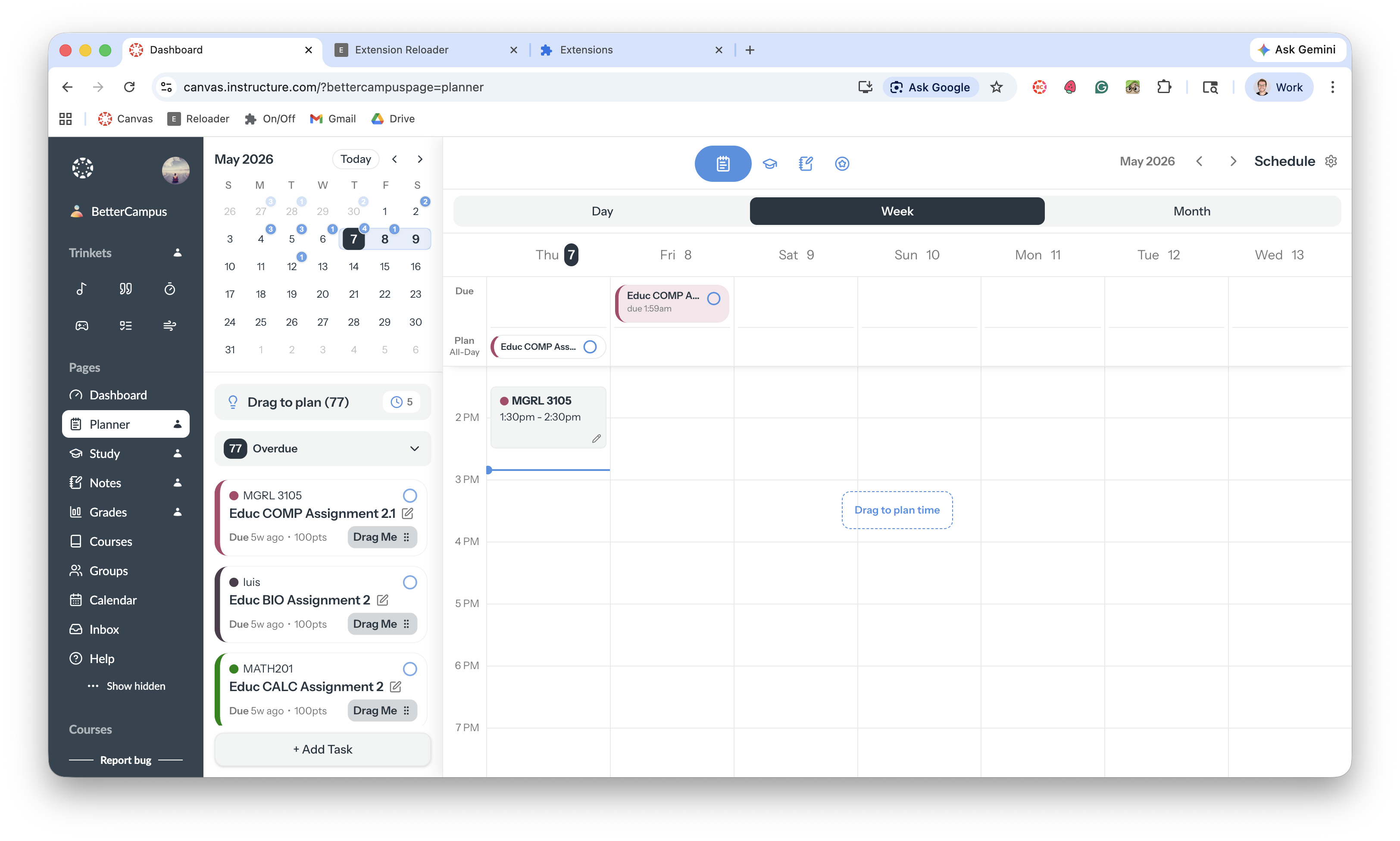
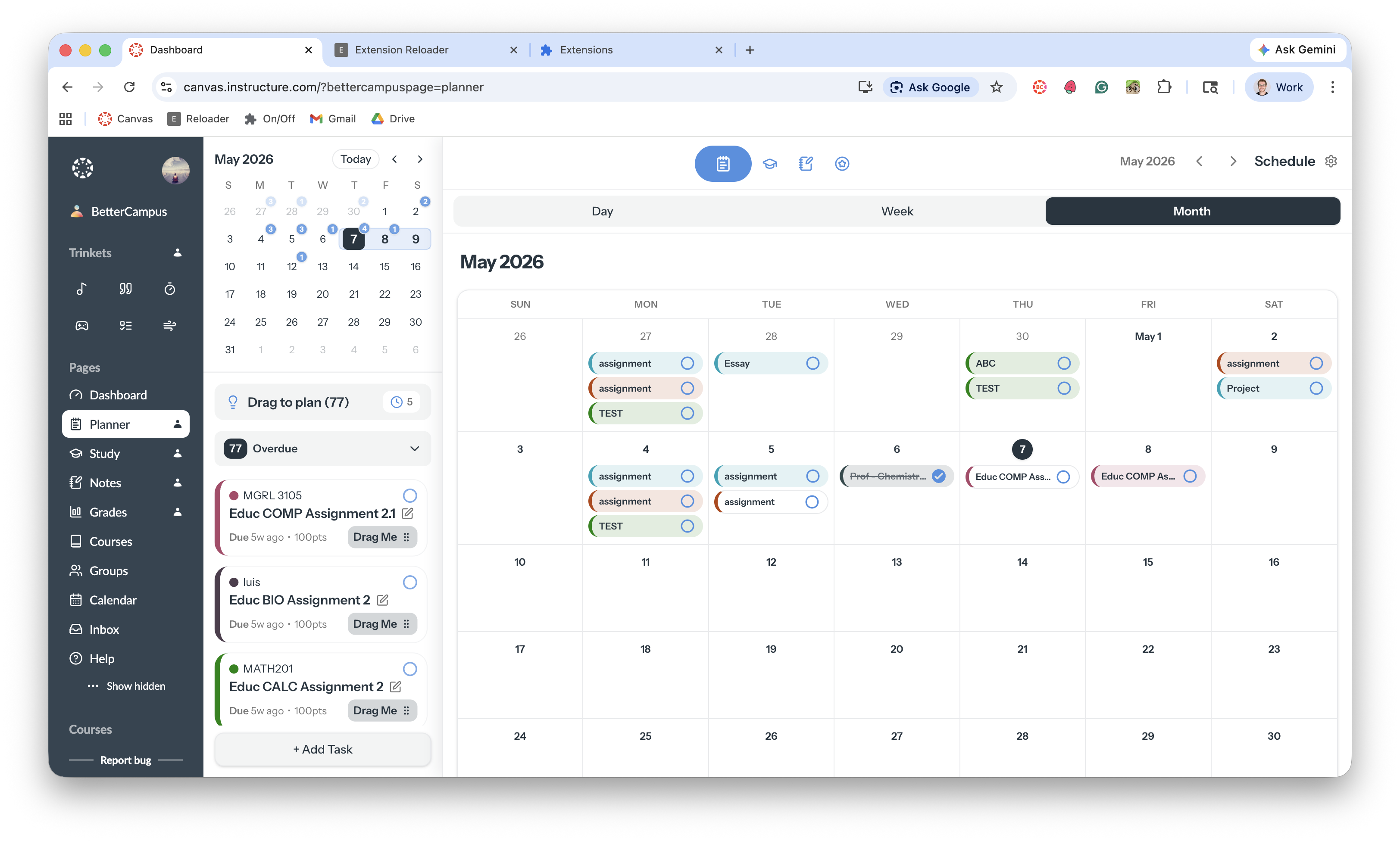
Use the tabs at the top of the schedule.
Day — today, with a time block for each planned task.
Week — the whole week, so you can spot the busy days.
Month — the big picture: exam weeks, project deadlines, and how the work is spread out.
Filter by class
Click the filter icon above your task list.
Check or uncheck the classes you want to see.
Use Select All or Clear All to move quickly.
Tips
Check your Planner at the start of each week.
Drag tasks onto your schedule early, not the night before.
Hover over a task to see where it lives in your school platform, then click to jump straight there.
What's next
Once your tasks are scheduled, sync them to your calendar or add personal tasks.